Making Your Own Crimpdeq
This chapter explains how to build your own Crimpdeq prototype.
1. Required Materials
- ESP32-C3-DevKit-RUST-1
- Other ESP32 boards can work, but you must provide your own battery charging solution.
- Battery Holder
- 18650 Battery
- Other batteries may also work if they can power the device.
- Crane Scale or Amazon alternative
- Other crane scales may also work.
- HX711 module:
- [Optional] Resistors:
- 1× 33 kΩ resistor
- 1× 10 kΩ resistor
2. Disassemble the Crane Scale
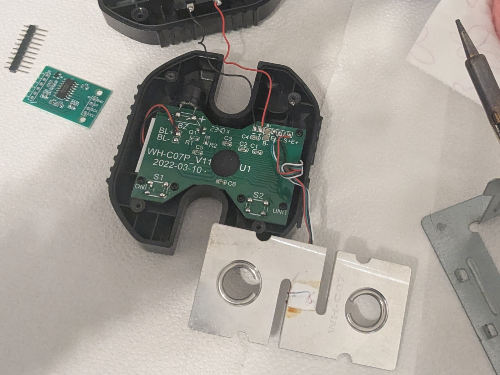
- Desolder the battery connections.
- Desolder the four load cell wires (
E-,S-,S+, andE+) from the PCB.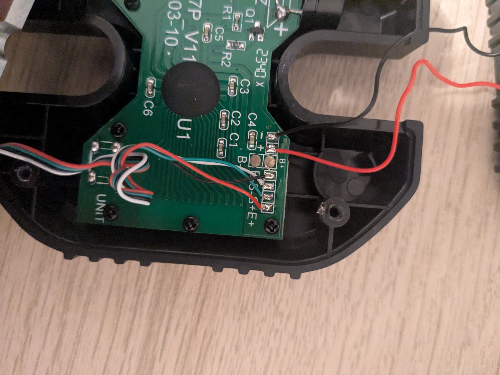
- Unscrew and remove the PCB and display.
3. Soldering
-
Modify the HX711 module:
- Set the sample rate to 80 Hz. Most HX711 modules ship with
RATEtied toGND, which sets 10 Hz. To switch to 80 Hz: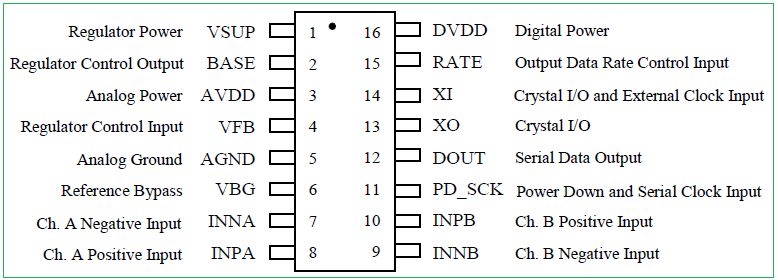
- Cut the PCB trace to the
RATEpin.- Carefully scratch the trace with a knife.
- Verify with a multimeter that
GNDandRATEare no longer connected.- Take care not to damage adjacent traces.
- Solder the
RATEpin to theDVDDpin. - Verify with a multimeter.
- Cut the PCB trace to the
- [Optional] Improve measurements at 3.3 V. Most HX711 modules are configured for 5 V operation:
- Solder a 20 kΩ to 27 kΩ resistor in parallel with
R1(highlighted in the image):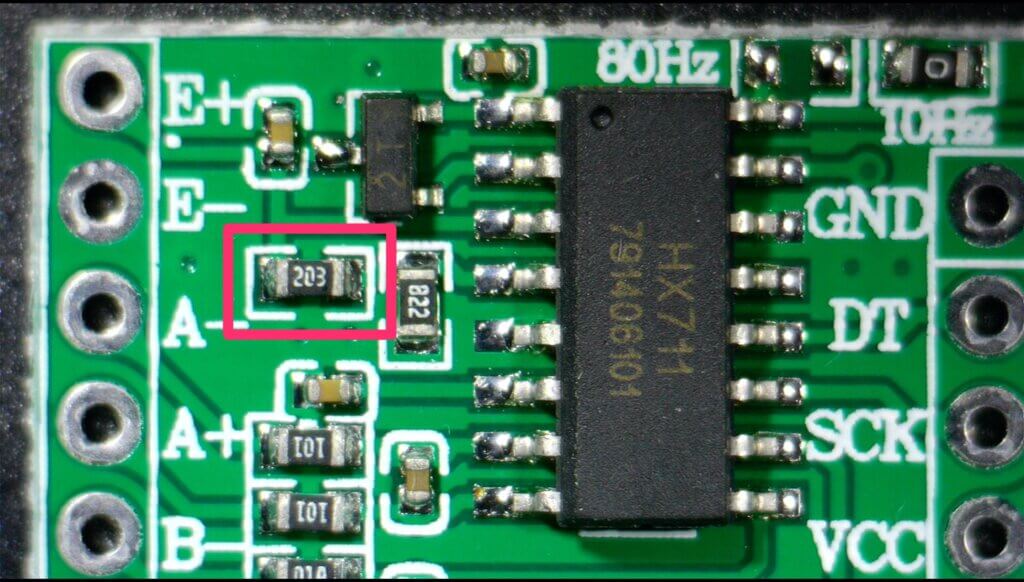
- For more information, see this blog post.
- This step is optional but improves measurement quality.
- Solder a 20 kΩ to 27 kΩ resistor in parallel with
- Set the sample rate to 80 Hz. Most HX711 modules ship with
-
Connect the load cell to the HX711:
- Solder the four wires from the crane scale to the HX711. Typical color mapping:
HX711 Pin Load Cell Pin Description E+ E+ (Red) Excitation positive (to load cell) E- E- (Black) Excitation negative (to load cell) S+ S+ (Green) Signal positive (from load cell) S- S- (White) Signal negative (from load cell) ⚠️ Note: On some HX711 modules,
S+/S-are labeledA+/A-. -
Connect the HX711 to the ESP32-C3-DevKit-RUST-1:
| HX711 Pin | ESP32-C3 Pin | Description |
|---|---|---|
| VCC | 3.3V | Power supply (3.3V) |
| GND | GND | Ground |
| DT (Data) | GPIO4 | Data output from HX711 |
| SCK (Clock) | GPIO5 | Clock signal for communication |
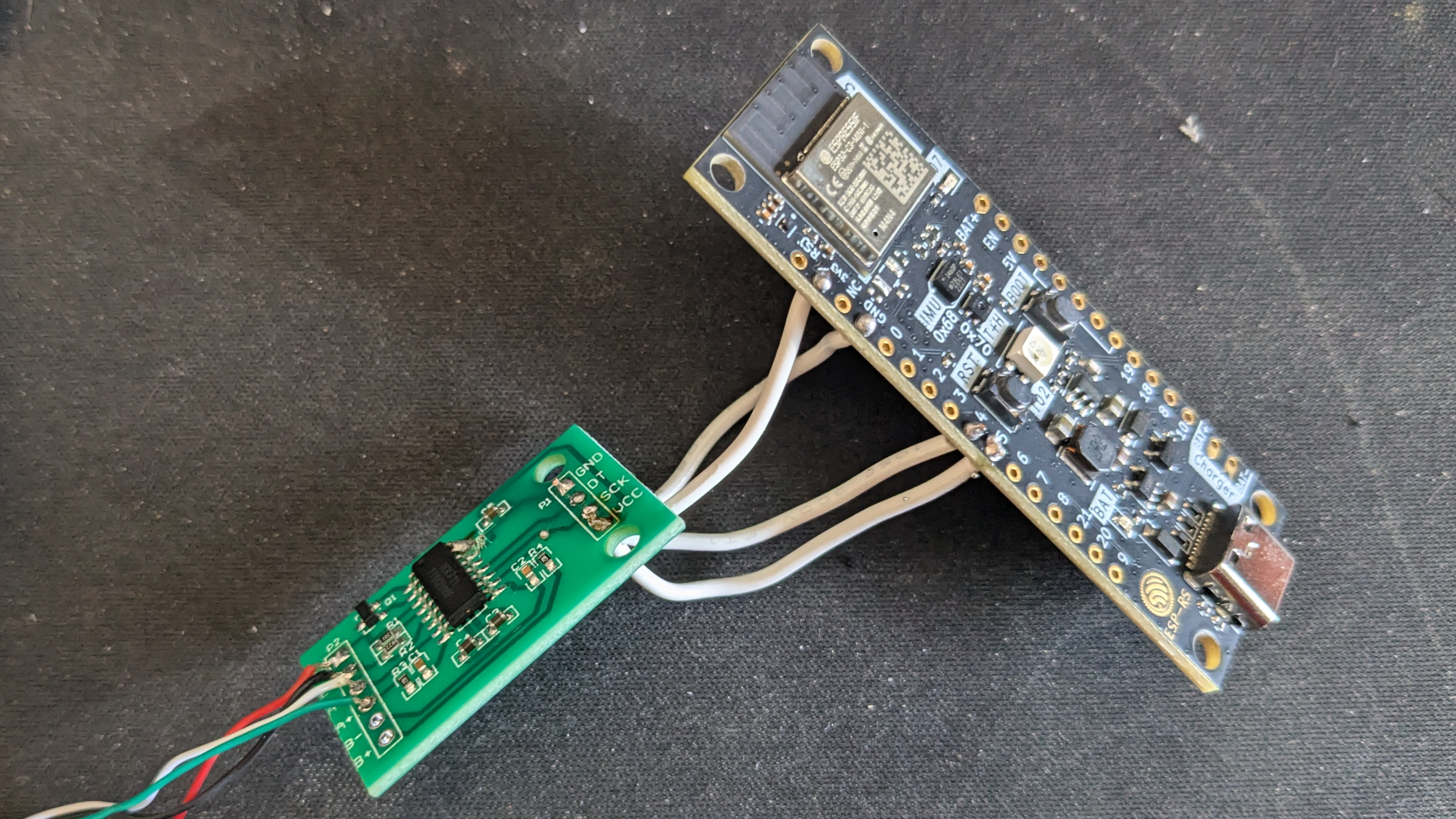
- [Optional] Solder the voltage divider:
- Solder one end of the 33 kOhm resistor to
B+on the ESP32-C3-DevKit-RUST-1. - Join the other end of the 33 kOhm resistor with one end of the 10 kOhm resistor, then connect that junction to
GPIO1. - Solder the remaining end of the 10 kOhm resistor to
GND.
- The firmware expects the battery sense on
GPIO1by default. Adjust the firmware configuration if you wire a different pin.
- Solder one end of the 33 kOhm resistor to
- Verify all connections with a multimeter.
4. Adapt the Scale Case
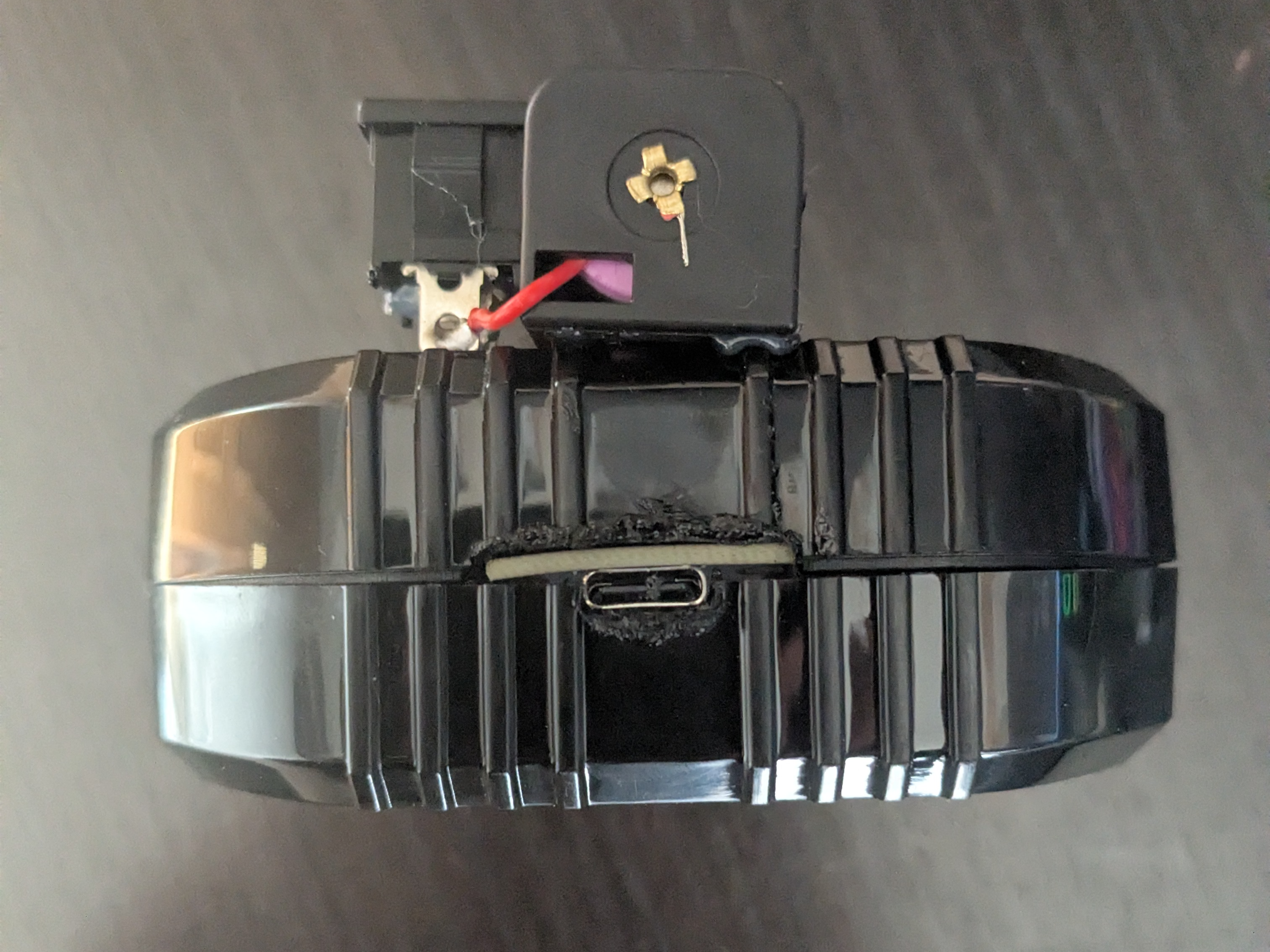
- Create space for the USB connector.
- For example: mark the opening with a pen, then carefully heat a knife and melt the plastic.
- Install the battery holder:
- Glue the battery holder with silicone. Leave the original battery lid opening free so you can route the two battery wires through it.
- Solder the positive wire (red) from the battery holder to a switch/button for power. Then solder the other switch/button pin to
B+on the ESP32-C3-DevKit-RUST-1. - Solder the negative wire (black) from the battery holder to
B-on the ESP32-C3-DevKit-RUST-1.
- Close the case:
- Ensure all components are securely installed before closing the case.
5. Upload the Firmware
-
Connect the device with a USB-C cable.
-
Clone the
crimpdeq-firmwarerepository:git clone https://github.com/crimpdeq/crimpdeq-firmwareIf you do not have Git installed, use the repository’s “Code” button and download a ZIP.
-
Upload the firmware:
- Download a
.binfile from the desired GitHub release. - Flash the device using one of these tools:
- Using esp.huhn.me.
- Click “Connect” and select the serial port for your ESP board.
- Upload your
.binfile. - Click “Program”.
- See this blog post for more details.
- Using Adafruit ESPTool
- Click Connect and select the serial port for your ESP board (often named
USB/JTAG serial debug unit...). - Upload your
.binfile at offset0x10000. - Click Program.
- Click Connect and select the serial port for your ESP board (often named
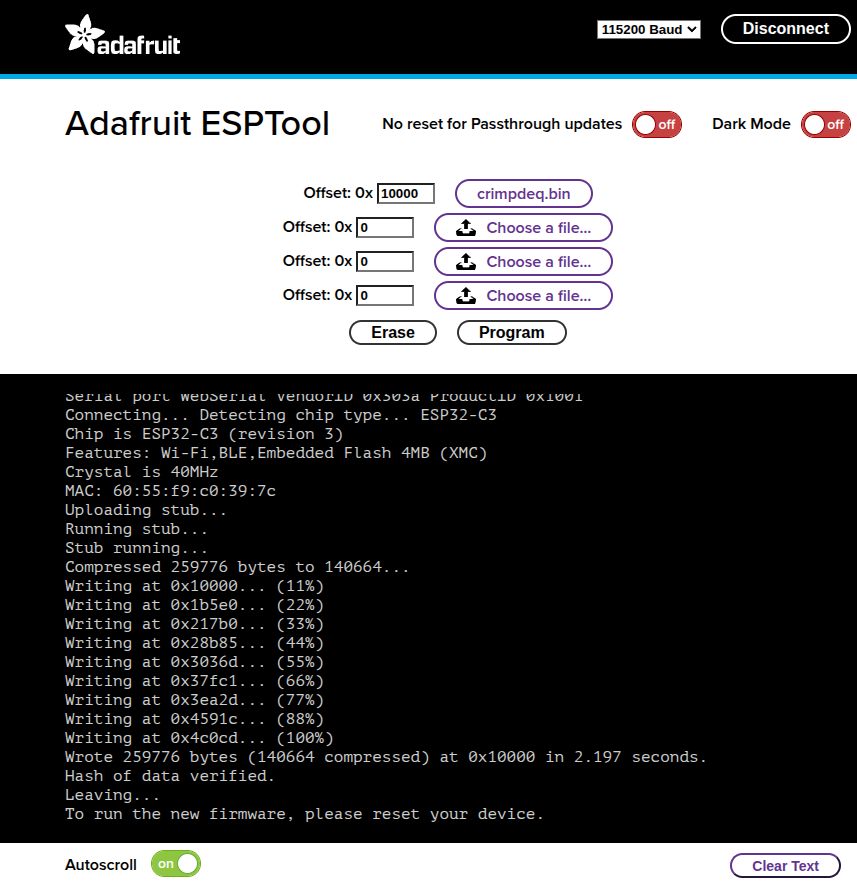
⚠️ Note: If this method does not work, see the Firmware chapter. You may need to install prerequisites and flash from the command line.
- Download a
-
Check whether the default calibration values work for your scale:
- Connect the device with the Frez or Tindeq app.
- Use the “Live View” option.
- Measure a known weight and verify the value is correct.
- If calibration is off, see the Calibration chapter.